Creating Courses
Learn how to create a training course and share it with your trainees.
📹 Video Tutorial
Creating a Course
1Go to Sessions
From the sidebar, click Sessions. Then click Create Course button.
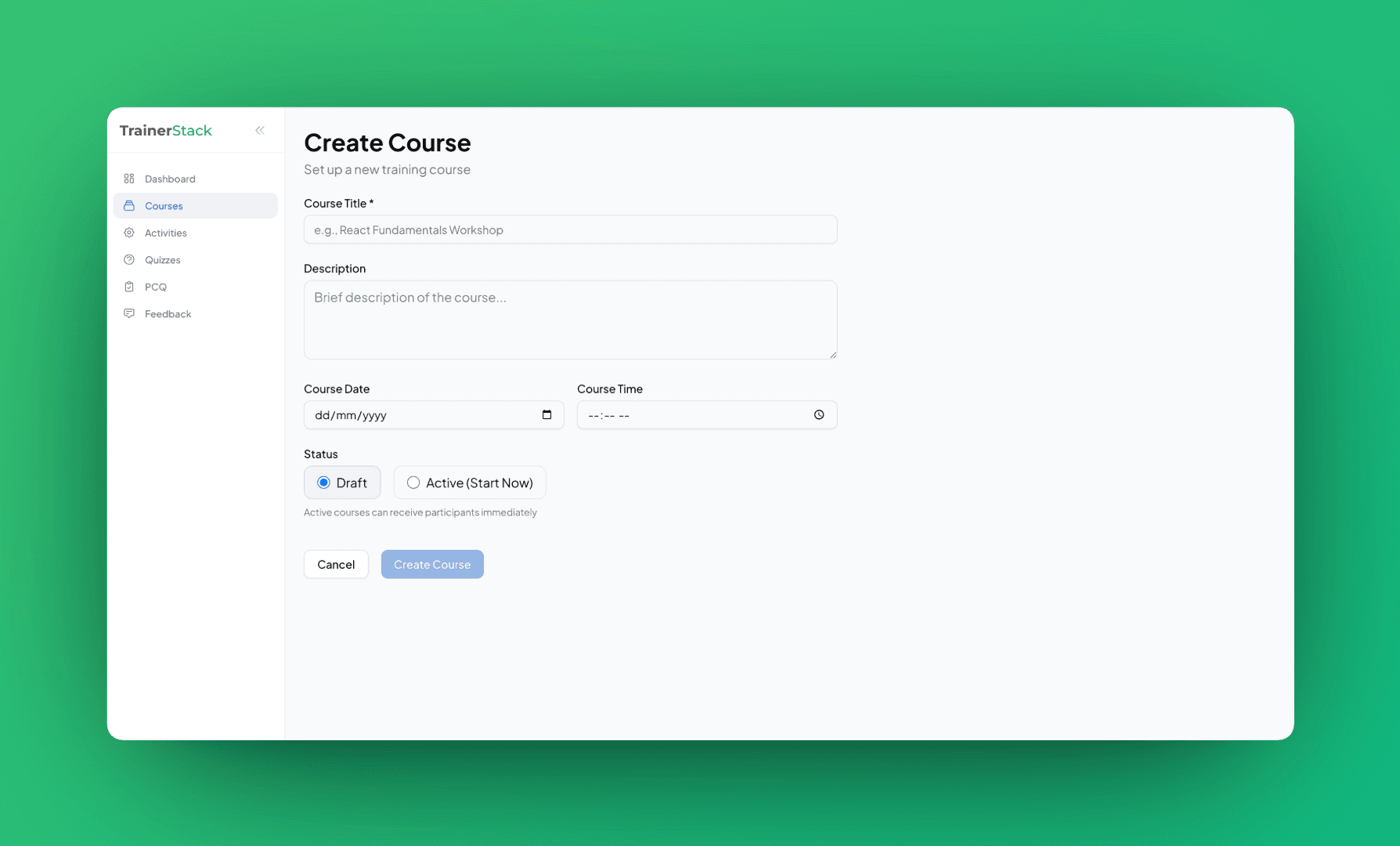
2Fill in Course Details
Course Title *
Required. Example: "React Fundamentals Workshop"
Description
Optional. Brief overview of what trainees will learn.
Course Date & Time
Optional. When the training will take place.
3Choose Status
Draft
Course is private. Trainees cannot join. Use this to prepare content first.
Active (Start Now)
Course is live. Trainees can join immediately using the share link.
💡 You can change status anytime by clicking "Start Course" or "End Course" on the course page.
4Click Create Course
After clicking Create Course, you'll be redirected to your course page. Tabs are grouped into Pre-course, During course, and Post-course. You'll start in the Pre-course section where you can attach a questionnaire (PCQ) and configure settings.
Sharing Your Course
Open the Pre-course section and go to Share & Resources to share your course:
QR Code
Display on your screen for trainees to scan with their phones.
6-Letter Join Code
Every course gets a unique code. Trainees visit:
trainerstack.tech/join/ABC123Share Link
Copy the direct URL to share via email, Slack, or calendar.
Pre-Course Link
If you attach a PCQ in Pre-course → Settings, a separate Pre-Course Link appears in Share & Resources. Share this for trainees to complete the questionnaire before the session.
After Creating
Your course page organizes tabs into three sections:
Pre-course
- • Share & Resources — Add links, files, and share the course
- • Pre-Course (PCQ) — Attach a pre-course questionnaire
- • Instructions — Session readme in Markdown
- • Settings — Attach PCQ, Feedback form, configure AI TA
During course
- • Quiz — Add and run interactive quizzes
- • Activities — Add and launch hands-on exercises
- • Q&A, Chat, Whiteboard — Live interaction
Post-course
- • Analytics — PCQ reports, quiz results, AI suggestions, training report
- • Reports — Download training report