Activities & Quizzes
Add interactive content to your training courses. Create activities for hands-on exercises and quizzes to test trainee knowledge.
Activities
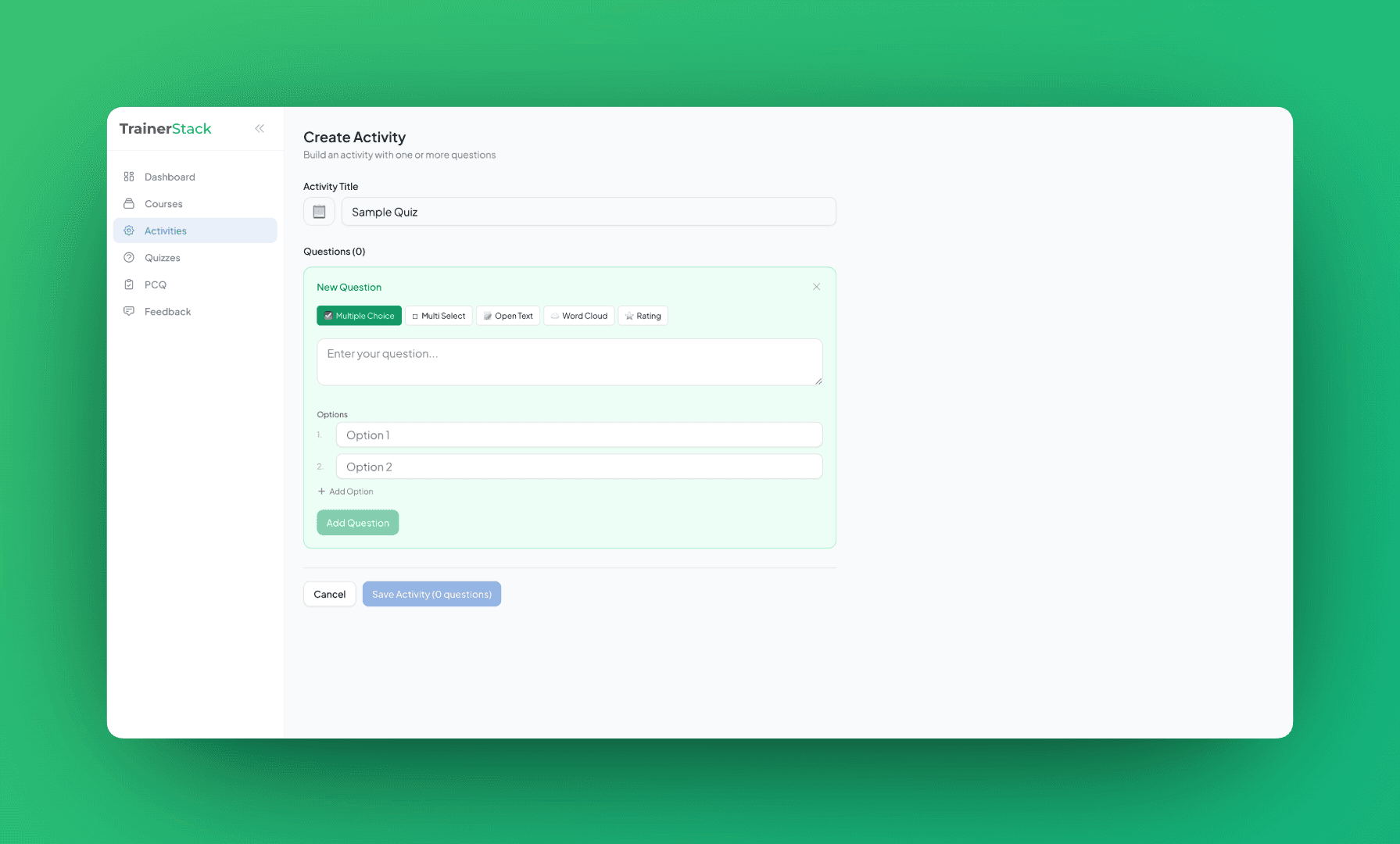
Activities are hands-on exercises that trainees complete during your session. They can be individual tasks, group discussions, or practical exercises with instructions.
Creating an Activity
- 1.Open your course → During course → Activities
- 2.Click Create Activity or choose from a template
- 3.Add a title and detailed instructions (supports markdown formatting)
- 4.Optionally set a time limit for the activity
- 5.Save and it's ready to launch during your session
Using Activities in Your Course
During a live session, you control when activities appear for trainees:
- 1.Open your course and go to During course → Activities
- 2.Click Launch on the activity you want to start
- 3.Trainees see the activity instructions on their screens
- 4.Track completion as trainees finish the activity
Types of Activities
You can create various types of activities depending on your training needs:
💬 Group Discussions
"Discuss with your neighbor for 5 minutes about the key challenges..."
🛠️ Hands-on Exercises
"Open the sample project and complete steps 1-5..."
📝 Reflection Prompts
"Write down 3 key takeaways from this section..."
📋 Case Studies
"Read the scenario and answer the following questions..."
🎯 Practice Tasks
"Apply the technique we just learned to this problem..."
⏱️ Timed Challenges
"You have 10 minutes to complete this exercise..."
Activity Templates
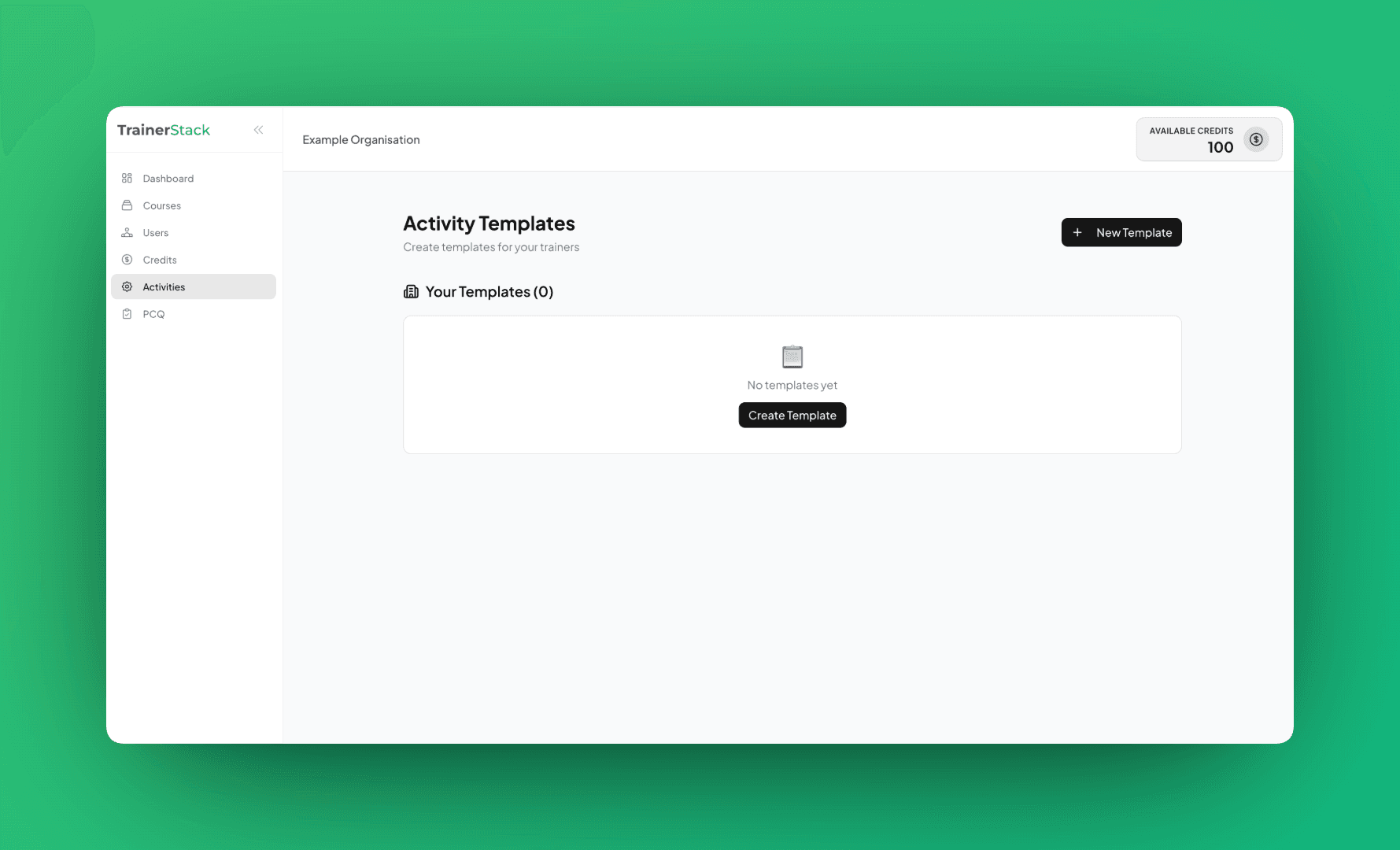
Save time by using pre-built templates. When creating an activity, you can:
- •Use a template — Start from a pre-built activity structure
- •Customize — Edit the template to fit your training
- •Save as template — Save your custom activity for future courses
Quizzes
Quizzes are multiple-choice questions that trainees answer in real-time. Results appear instantly, making them perfect for knowledge checks and keeping engagement high.
Creating a Quiz
- 1.Open your course → During course → Quiz
- 2.Click Create Quiz
- 3.Add questions with multiple choice options
- 4.Mark the correct answer for each question
- 5.Save the quiz to your course
Ways to Create Quizzes
Manual Entry
Type questions and answers directly in the quiz editor. Best for small quizzes or quick additions.
Import from CSV
Upload a CSV file with your questions for bulk import. Great for migrating existing quizzes.
CSV Format:
question,option1,option2,option3,option4,correct_answerAI Generation (Recommended)
Upload a markdown file with your curriculum content, and AI automatically generates relevant quiz questions for you.
- 1.Click "Generate with AI" in the quiz editor
- 2.Upload your .md file or paste your curriculum text
- 3.AI analyzes the content and generates multiple-choice questions
- 4.Review, edit, and save the generated questions
Running Quizzes in Your Session
During a live session:
- 1.Go to During course → Quiz in your course
- 2.Click Start Quiz on the quiz you want to run
- 3.Trainees see questions and submit answers in real-time
- 4.View live results as responses come in
- 5.Review detailed analytics after completion
Whiteboard
Use the Excalidraw whiteboard for visual explanations. Draw diagrams, annotate concepts, and share your screen in real-time with trainees.
- ✓Freehand drawing and shapes
- ✓Real-time sync to trainees (view-only)
- ✓Export drawings as PNG/SVG